
Updating Zato environments
How to keep your Zato environments and containers up to date.
Zato provides a built-in update mechanism accessible through your dashboard, which lets you install the latest updates without pulling new Docker images, and without restarting your containers.
Alternatively, you can also always install the latest updates by pulling the latest Docker image, which is uploaded daily.
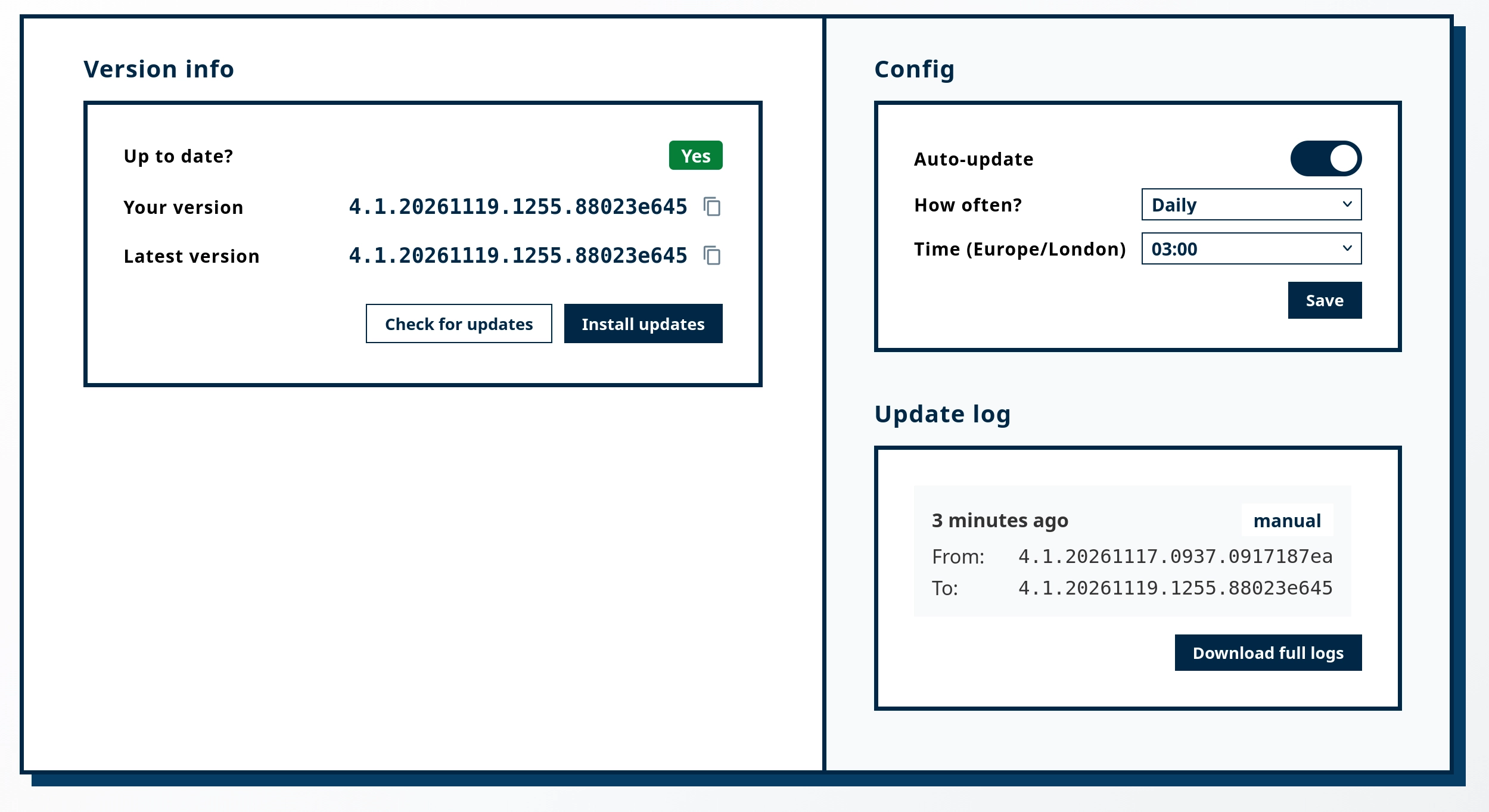
Automatic updates
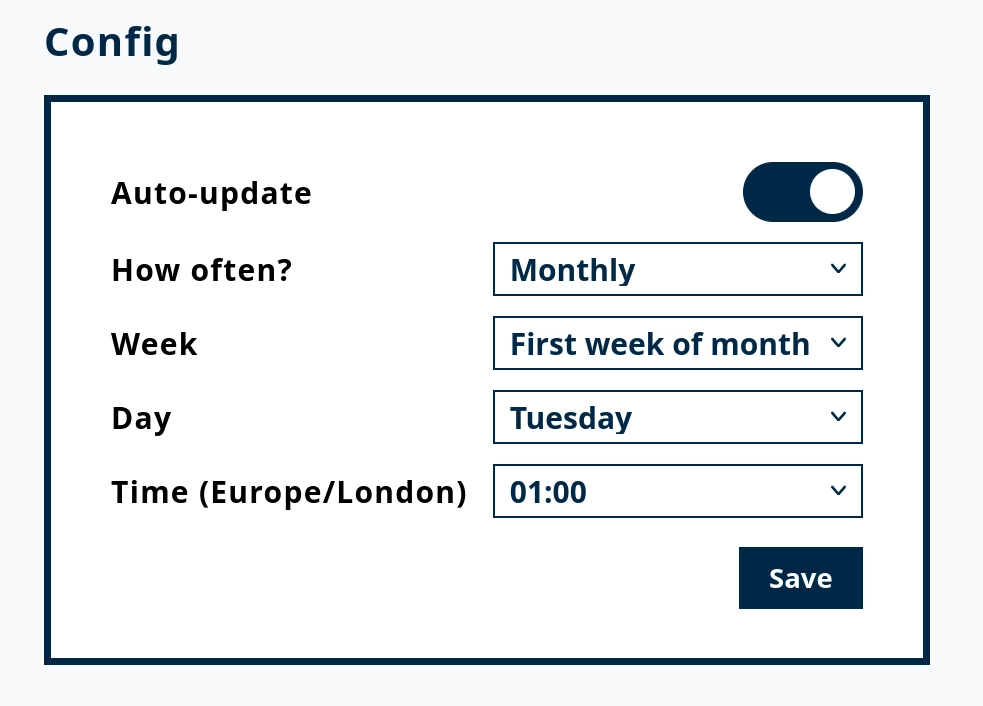
Automatic updates can be configured to run on a schedule. The following schedule types are available:
- Hourly - Every hour on the hour (i.e. 01:00, 02:00, 03:00, and so on)
- Daily - Updates run once per day at a specified time
- Weekly - Updates run on a specific day of the week at a specified time
- Monthly - Updates run on a specific week and day of the month at a specified time
Remember to click Save after choosing your schedule. And to turn off automatic updates, simply slide the toggle off.
Manual updates
To perform a manual update:
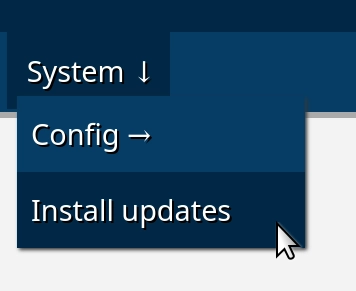
- Go to
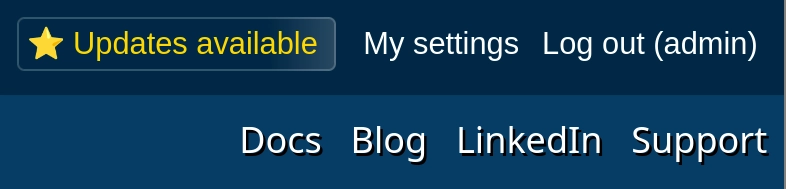
System → Install updatespage in the menu - Or, click the
Updates availablebutton in the top-right corner - Click "Install updates" to download and apply them, if there are any available
- The system will automatically restart all the components after the update completes
- Note that your server will be restarted and during that time it will not be accepting or processing any requests or messages
- You don't need to restart the container, the updates will be installed directly from your dashboard
- (End of steps)
Docker image updates

If you prefer to manage updates at the container level, such an option is always possible:
- A new Docker image with Zato is published daily, once in 24 hours.
- The image is always stable, always up to date, and it always contains the latest features and additions.
- To update your Zato environment, create a new container using the latest image. That is, use the same
docker runcommand that you used to start your container initially, for instance:
sudo docker run --pull=always -it --rm -p 22022:22 -p 8183:8183 -p 11223:11223 \
--name zato-4.1 -e Zato_Log_Env_Details=True \
zatosource/zato-4.1
Before you replace a container
So, in order:
- Confirm the project is in git and current - enmasse.
- Confirm the audit log database is external, and that the same
Zato_Audit_Log_DB_*values are passed to the new container. - Confirm the same mounts are in the new
docker runcommand as in the old one. - Start the new container and watch the log until it reports itself ready.
- Check it as you would after any restart - see starting and stopping servers, and the production best practices if anything about the environment changed along the way.
Verify after updating
Whichever way the update ran, the same two checks confirm the environment came back:
- Call the built-in ping endpoint:
The environment is up when the response is a JSON document like this one:
- Log in to the Dashboard at http://localhost:8183 and confirm the
Updates availablebutton in the top-right corner is gone - the environment now runs the latest version.
If your own services are deployed from a mounted project directory, they redeploy automatically when the server starts - nothing to do there.