
 Installation on Windows
Install Zato under Windows 10, 11 or compatible server editions.
- A WSL2 installation is recommended because that will give you better integration with Visual Studio code, and it will also let you use the same provisioning scripts as in your Linux-based environments
Download and install Docker Desktop for Windows
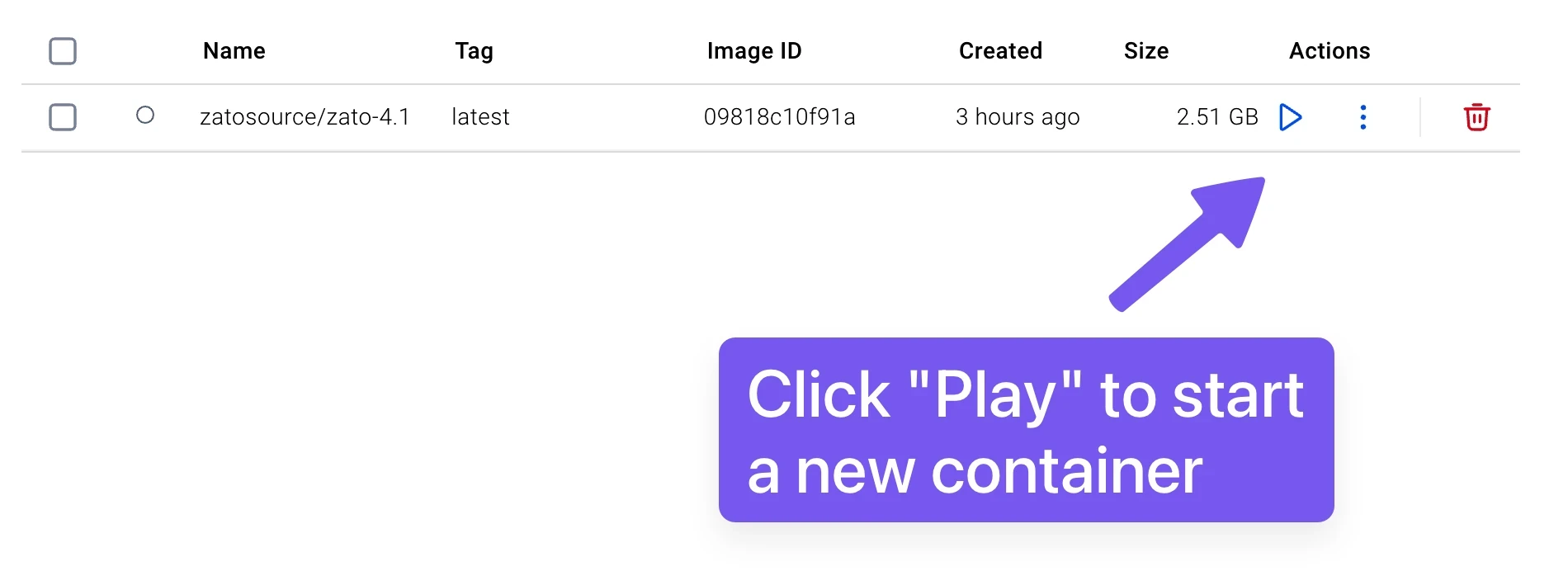
Start Docker Desktop, look up an image called zatosource/zato-4.1 and pull it to your system


- Once the image is pulled, click "play" to start a new container and fill out the settings:
- The container's name can be "zato"
- Map port 8183 to 8183
- Add a new environment variable called "Zato_Password". Provide any value and it will become the password to your environment.
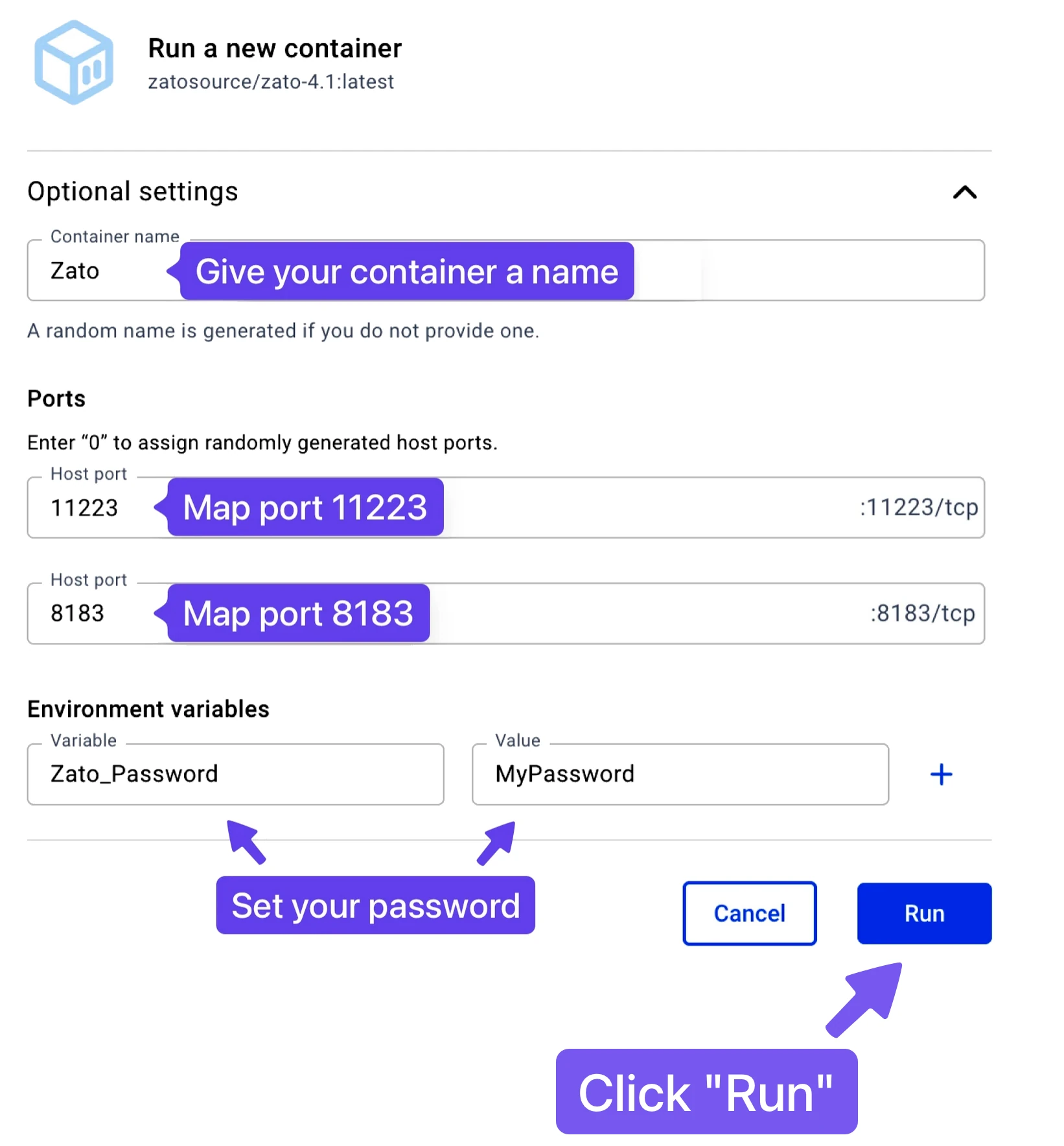
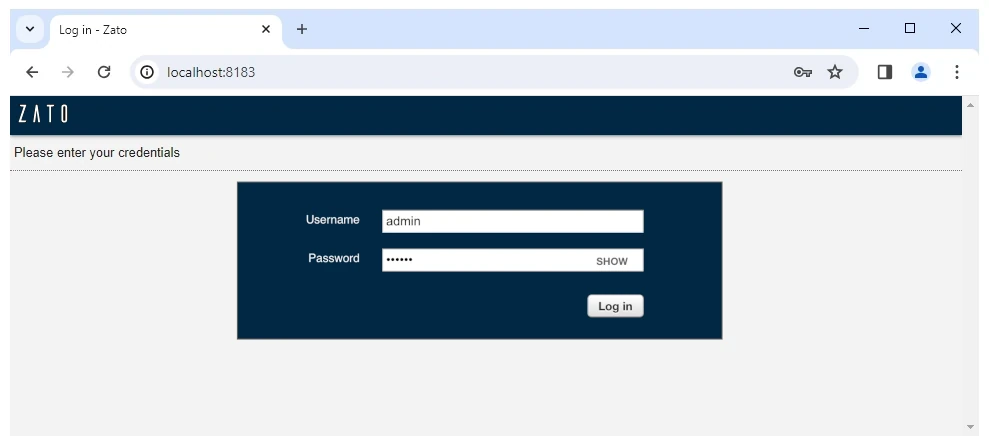
- Click "Run", wait for the container to start and log in to your Dashboard at http://localhost:8183
- Dashboard: http://localhost:8183
- Username: admin
- Password: The one that you set above
- That concludes the process - the best way to continue is to visit the tutorials now.
- Start an admin PowerShell session:
- Update WSL2:
PS c:\Users\myuser>wsl --update
Checking for updates.
Updating Windows Subsystem for Linux to version: 2.x.yy.
...
- Download Ubuntu 24.04 if you don't have it already
PS C:\Windows\system32> wsl --install --web-download -d Ubuntu-24.04
Downloading: Ubuntu 24.04 LTS
...
- Tell WSL2 what the default Linux distribution should be:
- Enter Ubuntu 24.04:
- Install Docker (inside WSL2):
sudo apt-get update && \
sudo apt-get upgrade -y && \
sudo apt-get install ca-certificates curl -y && \
sudo install -m 0755 -d /etc/apt/keyrings && \
sudo curl -fsSL https://download.docker.com/linux/ubuntu/gpg -o /etc/apt/keyrings/docker.asc && \
sudo chmod a+r /etc/apt/keyrings/docker.asc && \
echo \
  "deb [arch=$(dpkg --print-architecture) signed-by=/etc/apt/keyrings/docker.asc] https://download.docker.com/linux/ubuntu \
  $(. /etc/os-release && echo "${UBUNTU_CODENAME:-$VERSION_CODENAME}") stable" | \
sudo tee /etc/apt/sources.list.d/docker.list > /dev/null && \
sudo apt-get update &&
sudo apt-get install docker-ce docker-ce-cli containerd.io docker-buildx-plugin docker-compose-plugin -y &&
sudo usermod -aG docker $USER
Log out of WSL and log in to it again
Clone the GitHub repository with a blueprint Zato project
- Start a new container with your Zato server (change "MyPassword" to your own):
- Wait for the container to start and log in to your Dashboard at http://localhost:8183
- Dashboard: http://localhost:8183
- Username: admin
- Password: The one that you set above
- That concludes the process - the best way to continue is to visit the tutorials now.