
API rate limiting and firewall
Cap how many requests a caller can send and drop traffic from named address ranges.
API rate limiting controls how many requests a client can make to your APIs within a given time window. A rule marked disallowed closes the TCP connection, with no HTTP response.

Cap each API partner at 1,000 requests per hour across all endpoints they authenticate to (identity-aware rate limiting), no matter how many individual REST endpoints they invoke
Apply different limits at different times of day - for example, allow only a few requests per second throughout the day but ten times more between 01:00 and 02:00, when your batch loading processes run. Each time range tracks its own independent counters
Set both a per-second burst limit and a per-day or per-month hard cap on the same rule, so short traffic spikes are absorbed while the total daily or monthly budget is still enforced
Allow only your internal address ranges to reach an endpoint and silently drop everything else, turning a REST channel into a private API without a separate network-level firewall
Block entire IP ranges with a silent TCP drop that reveals nothing about the server behind the address - scanners and automated tools see only a connection reset, identical to a network firewall
Identity-level and channel-level limits
Rate limiting can be configured on two levels, either in combination or independently.
- Security definitions - limits apply to all channels that use a given Basic Auth or API key definition, regardless of which channel is called. This is identity-aware rate limiting - the limit follows the credential, not the IP address or the channel endpoint. A single partner authenticating to ten different channels still has one shared limit.
- REST channels - limits apply to a specific channel endpoint
When both are configured, Zato checks the channel limits first, before it authenticates the caller, and, if they allow the request, the security definition limits next, once the caller is authenticated. This two-level design means you can set a global cap per partner (via security definitions) and a separate, tighter cap on individual endpoints (via channels), without the two interfering.
When many API clients should share the same limits, define them once as a quota tier - a named, reusable plan assigned to security definitions, security groups and channels, with counting still per consumer.
Rules
Rules and address lists

Each rate limiting configuration consists of one or more rules. Each rule has an address list - a set of IP addresses or ranges that it matches against - and one or more time ranges with their own limits. There is no hard cap on the number of addresses per rule or on the number of rules per channel.
Addresses can be single IPs (for example 192.168.1.10) or ranges in subnet notation (for example 10.0.0.0/8, meaning all addresses from 10.0.0.0 to 10.255.255.255). Both IPv4 and IPv6 are supported.
If a rule's address list is empty, it matches all client IP addresses. If addresses are specified, only requests from matching addresses are subject to that rule. Zato evaluates rules top to bottom and uses the first rule whose address list matches the client IP.
On a channel, each address or range in a rule's list has its own counters - all callers within 10.0.0.0/8 share one set, and a caller matching 192.168.1.10 in the same rule has another. A rule with an empty address list keeps one set of counters for all its callers.
Allow lists and deny lists
You can combine allow and deny rules to build precise IP access policies. For example, a rule allowing 10.0.0.0/8 followed by a disallow rule that matches all addresses creates a classic allowlist.
A rule disallowing 203.0.113.0/24 followed by a permissive rule matching all addresses creates a denylist. More specific addresses in earlier rules naturally take precedence over broader ranges in later rules, because rules run in the order that you define them.
Time ranges
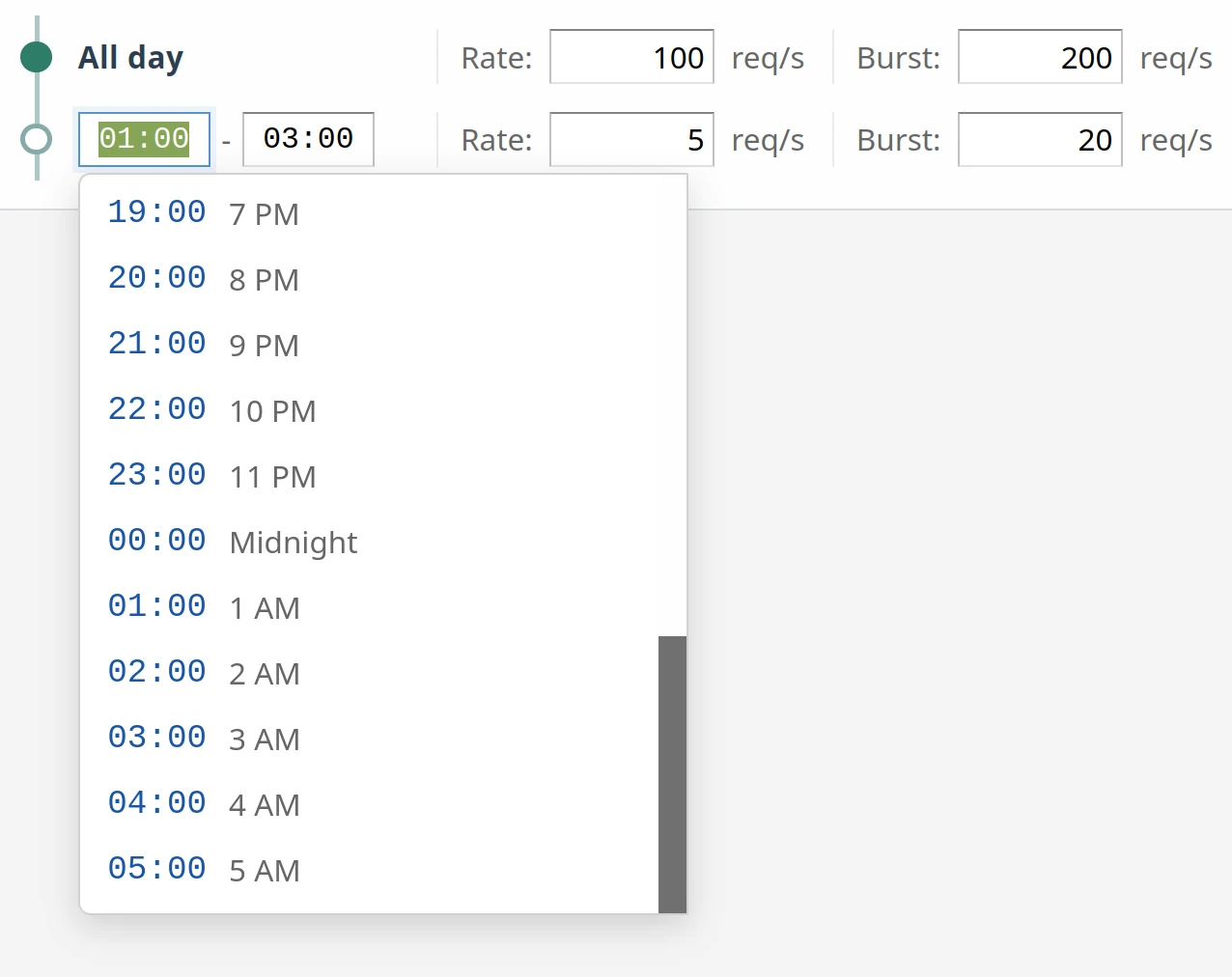
Each rule has at least one time range - the all-day default. You can add additional time ranges for specific hours of the day (for example 09:00-17:00). When a request arrives, Zato checks time ranges in order:
- If a specific time range covers the current time and is not disabled, Zato uses it
- Otherwise, Zato uses the all-day default
Each time range has its own independent set of limits and counters.
Burst control and hard caps
Each time range gives you two controls that work together:

- Rate and Burst - how many requests per second are allowed, and how large a short spike can be before throttling begins. For example, rate=100 and burst=200 means a client can send 200 requests in a quick burst, but sustained traffic cannot exceed 100 per second.

- Limit and its unit - a hard ceiling on the total number of requests over a longer period. The unit is a fixed calendar interval - when it ends, the counter resets to zero and the client gets a fresh allowance. For example, a limit of 1,000 per minute means the counter resets at the top of every minute (10:00:00, 10:01:00, 10:02:00, ...). A limit of 20,000 per day means the counter resets at midnight. A limit of 500 per hour means a client that exhausts its quota at 14:37 can send again at 15:00. Monthly limits respect actual calendar days - 30 in June, 31 in July, 28 or 29 in February.
Denied requests
When a request is denied, Zato always returns HTTP 429 Too Many Requests with a Retry-After header containing an HTTP-date timestamp indicating when the client can retry.
$ curl -v http://user:password@localhost:11223/api/customer

< HTTP/1.1 429 Too Many Requests
< Retry-After: Mon, 01 Jun 2026 00:00:00 GMT
{
    "result": "Error",
    "cid": "20260504-113121-2314-57a1b3646a55499ea",
    "details": "Too many requests"
}
Disallowed traffic (firewall mode)

If a time range is marked as disallowed, Zato does not return an HTTP error at all. Instead, it silently drops the TCP connection, without any response headers, response bodies or HTTP status codes - on the client side, the result is a connection reset or timeout.
This is useful for blocking entire IP ranges, denying access outside business hours, or implementing geographic restrictions at the application level of Zato.
$ curl -v http://user:password@localhost:11223/api/customer

curl: (56) Recv failure: Connection reset by peer
Disabled rules

A time range can be disabled, and evaluation skips it. If the all-day default is disabled and no other time range matches, that rule allows all traffic. You can temporarily suspend rate limiting without deleting the configuration.
Disabling a rule takes effect immediately and does not reset counters. When you re-enable the rule, the existing counters resume from where they were. To reset the counters, use the Clear counters link separately.
Server restarts
Rules and configuration load automatically on startup, but counters live in memory only - a restart resets them all to zero.
Configure rate limiting on REST channels
In Dashboard, navigate to the REST channel list via Connections -> Channels -> REST. Each channel row has a Rate limiting link.
Click it to open the rate limiting editor for that channel.
From here you can:
- Add IP addresses or ranges to restrict which clients the rule applies to
- Add time ranges with specific hours
- Set rate, burst, limit, and time unit for each time range
- Enable or disable individual time ranges
- Mark time ranges as disallowed (firewall mode)
- Reorder rules by dragging
- Clear counters for a specific rule
- Save to apply changes immediately without restarting
Configure rate limiting on security definitions (identity-aware)
Navigate to Security -> Basic Auth or Security -> API Keys. Each definition row has a Rate limiting link, the same as for channels.
Rules configured here apply to every channel that uses this security definition. The limit follows the credential, not the endpoint. For example, if a Basic Auth user "api-partner-1" has a limit of 100 requests per minute, that limit is enforced across all channels that "api-partner-1" authenticates to - whether the partner calls /orders, /invoices, or any other endpoint protected by the same definition.
This is identity-keyed rate limiting: Zato tracks the counter per security definition, and it covers all the channels that the definition authenticates to. Each security definition has its own independent counters - "partner-a" and "partner-b" never share a bucket, even if they call the same endpoints.
Client IP resolution
Zato determines the client IP address using the following headers, checked in this order:
X-Zato-Forwarded-ForX-Forwarded-ForREMOTE_ADDR
Zato uses the first non-empty value.
By default, Zato discards both forwarding headers as they arrive and sets X-Zato-Forwarded-For to the address that the request came from.
Requests forwarded by a load balancer or CDN
When a load balancer or CDN forwards requests to Zato, the address that the request comes from is the intermediary's, and the caller's address is in X-Forwarded-For. Set Zato_Trust_Forwarded_Headers to use it:
Zato then takes X-Zato-Forwarded-For from the last entry of the incoming X-Forwarded-For, or from the connection's own address when the header is absent.
Leave the variable unset when callers reach Zato directly, otherwise a caller can name any address it likes.
You can edit the variable under Settings > Environment variables in the Dashboard, and it applies to new connections without a restart. Add it to the environment that Zato starts with as well, or a restart reverts it.
When IP resolution is not enough - for example, when many users share one address through mobile carriers, corporate NATs, or iCloud Private Relay and similar - use identity-aware rate limiting via security definitions instead, so the limit follows each credential rather than the shared IP.
Live updates
Changes saved through the Dashboard take effect immediately - without a server restart, a propagation delay or a grace period during which old rules still apply - so you can respond to an ongoing incident by changing limits in real time.
Saving preserves existing counters, so changing a limit does not reset them - if a client has used 80 of 100 allowed requests and you raise the limit to 200, they immediately have 120 remaining.
FAQ and examples
Limit a partner to 100 requests per minute

- Create a Basic Auth or API key definition for the partner
- Open its rate limiting editor
- Set the all-day rule to Limit: 100 req/minute
- Set Rate and Burst high enough (for example 100 and 200) so the per-second limit does not interfere
- Save
Every channel this partner authenticates to now enforces the 100/minute cap - the limit follows the credential across all endpoints.
Block a specific IP range

- Open the rate limiting editor for the channel or security definition
- Add a rule with the address range you want to block (for example
172.16.0.0/12) - Set the all-day time range to disallowed
- Save
Zato silently drops requests from that range at the TCP level. You can add as many addresses per rule as needed - there is no limit on list size.
Allow only internal IPs

- Create a rule with your internal address ranges (for example
10.0.0.0/8,172.16.0.0/12,192.168.0.0/16) - Set generous limits on that rule
- Create a second rule with an empty address list (matches everything)
- Mark the second rule as disallowed
- Save
Since rules are evaluated top to bottom, internal IPs match the first rule and are allowed, while the second rule, with its empty address list, silently drops every other address.
Apply different limits during business hours

- Open the rate limiting editor
- Add a time range for business hours (for example 09:00-17:00) with a higher limit
- Configure the all-day default with a lower limit for off-peak hours
- Save
Each time range has its own independent counters. You can define as many time ranges as needed - for example, one for peak hours with generous limits, one for maintenance windows with tight limits, and the all-day range as a baseline.
Temporarily disable rate limiting

- Open the rate limiting editor
- Click the toggle to disable the all-day rule (and any specific time ranges)
- Save
Evaluation skips disabled rules. You can re-enable them later - the configuration is retained - and the change takes effect immediately, with no restart.
Clear a channel's or client's counters

- Open the rate limiting editor
- Click the Clear counters link on the rule row whose counters you want to reset
The link clears all counters for that rule immediately - both the per-second burst counter and the hard cap counter. The client can resume sending requests right away without waiting for a time unit to expire.
Automate rules with enmasse
Rules can be automated with Zato's enmasse tool - define them in YAML and import them from the command line or CI/CD pipelines, without using the Dashboard at all.
Rate limiting is configured as a rate_limiting key on channel_rest and security entries. The first time range of each rule is the all-day one, and the time ranges for specific hours follow it. For example:
channel_rest:
  - name: my.api.channel
    service: my.service
    url_path: /api/v1/data
    rate_limiting:
      - cidr_list:
          - 10.0.0.0/8
        time_range:
          - is_all_day: true
            disabled: false
            disallowed: false
            rate: 20
            burst: 40
            limit: 1000
            limit_unit: hour
          - is_all_day: false
            time_from: '09:00'
            time_to: '17:00'
            disabled: false
            disallowed: false
            rate: 100
            burst: 200
            limit: 5000
            limit_unit: hour
      - cidr_list:
          - 0.0.0.0/0
        time_range:
          - is_all_day: true
            disabled: false
            disallowed: false
            rate: 10
            burst: 20
            limit: 500
            limit_unit: hour

security:
  - name: partner.credentials
    type: basic_auth
    username: partner1
    rate_limiting:
      - cidr_list:
          - 0.0.0.0/0
        time_range:
          - is_all_day: true
            disabled: false
            disallowed: false
            rate: 200
            burst: 400
            limit: 10000
            limit_unit: day
The full YAML reference, including all supported fields and their meanings, is in the enmasse reference.
See also
| Page | What it covers |
|---|---|
| Quota tiers | One named plan assigned to any number of API clients |
| Channel security | The security definitions that identity-aware limits attach to |
| Enmasse | Importing the same rules from YAML |