
 Your first Fabric integration
Create the connection and read rows from a lakehouse table in a Python service.
This tutorial will show you how to read data out of Microsoft Fabric tables and into Python for further distribution or processing.
Step 1 - Create an app registration in Azure
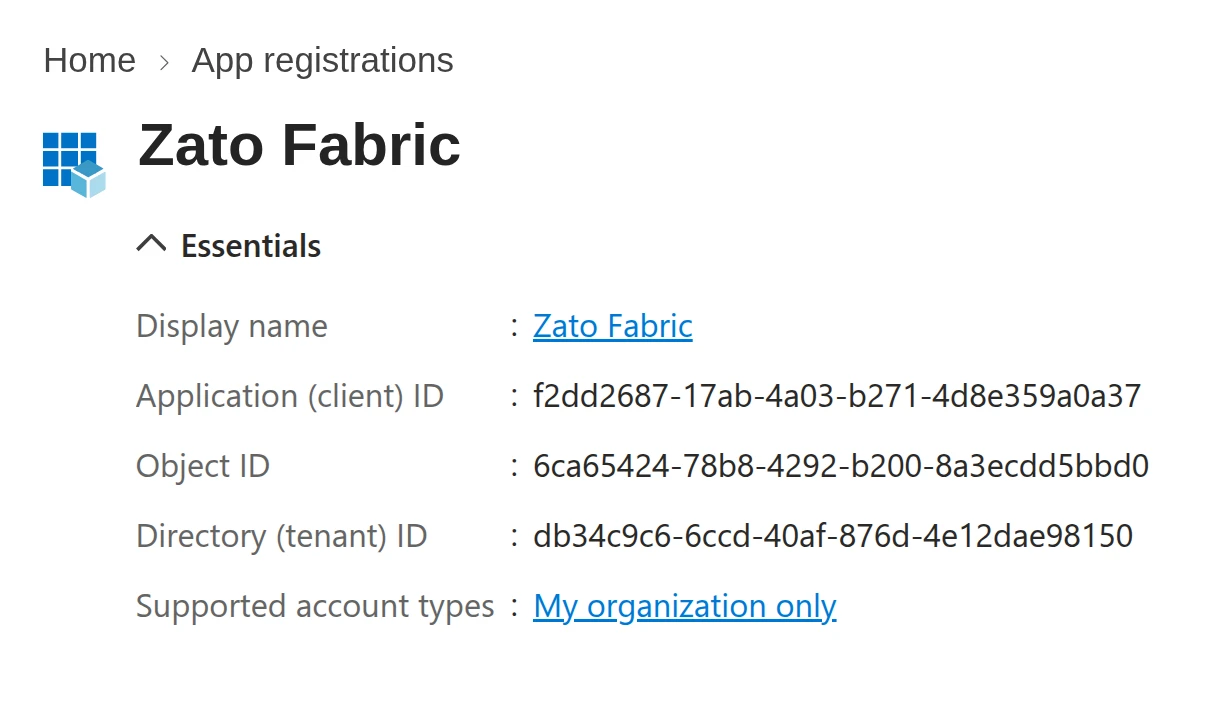
For Zato to connect to Fabric, you need an app registration from the Azure portal - observe these are not defined in Fabric portal. Such a registration will look like below.
You need to copy:
- Directory (tenant) ID
- Application (client) ID
- App registration secret
Step 2 - Find the workspace and lakehouse IDs
When connecting to Fabric, you within the boundaries of a workspace and lakehouse, these are like namespaces to hold data. Each of them has its ID which you need to copy to use in your code.
Step 2 - Create a Fabric connection in Zato Dashboard
Open the Zato Dashboard and go to Cloud → Microsoft → Fabric. Click "Create a new connection" and fill in the form:
| Field | Value |
|---|---|
| Name | Zato Fabric |
| Address | https://api.fabric.microsoft.com/v1 |
| Tenant ID | The directory (tenant) ID |
| Client ID | The application (client) ID |
| Client secret | The secret of the app registration |
Click "Ping". It obtains a token and lists the workspaces the app has access to.
Step 2 - Find the workspace and lakehouse IDs
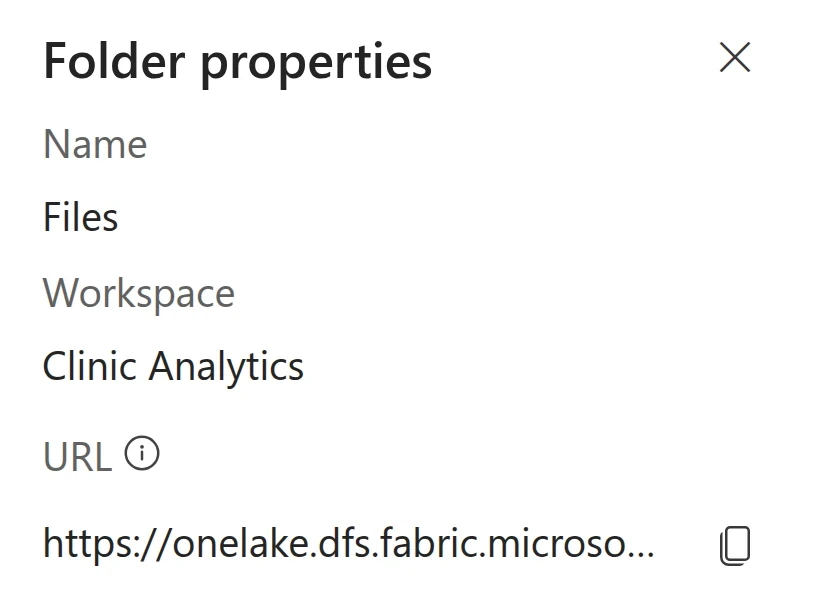
Your Zato service will need the IDs of the workspace and of the lakehouse to connect to.
Open your workspace, click the desired lakehouse, then in the explorer pane on the left, Files → (click three dots) → Properties, then copy the URL field.
This will give you an address such as https://onelake.dfs.fabric.microsoft.com/
262ddd3d-3d0d-4495-b80f-6dddda1e23a1/73811955-064d-481a-a7e9-f9c563124f9e/FilesThe first GUID is your workspace ID, the second GUID is the lakehouse ID, so copy them for later use
Step 3 - Write the service
For this tutorial, the demo service queries the admissions table of the lakehouse for the admissions at Riverside that are still open.
Take the code below and deploy it, the invoke it from the Dashboard's IDE at under Services → IDE.
# -*- coding: utf-8 -*-

# Zato
from zato.server.service import Service

class GetOpenAdmissions(Service):

    name = 'fabric.get-open-admissions'

    def handle(self):

        # The two IDs from step 2 ..
        workspace_id = '262ddd3d-3d0d-4495-b80f-6dddda1e23a1'
        lakehouse_id = '73811955-064d-481a-a7e9-f9c563124f9e'

        # ... query to run ..
        sql = """
        select admission_id, location, admitted_at
        from admissions
        where location = 'Riverside'
        and status = 'admitted'
        order by admission_id
        """

        # .. get a fabric connection ..
        conn = self.microsoft.fabric['Zato Fabric']

        # .. run the query ..
        result = conn.query(workspace_id, lakehouse_id, sql)

        # .. and return the result to our caller.
        self.response.payload = result
Step 4 - Run it
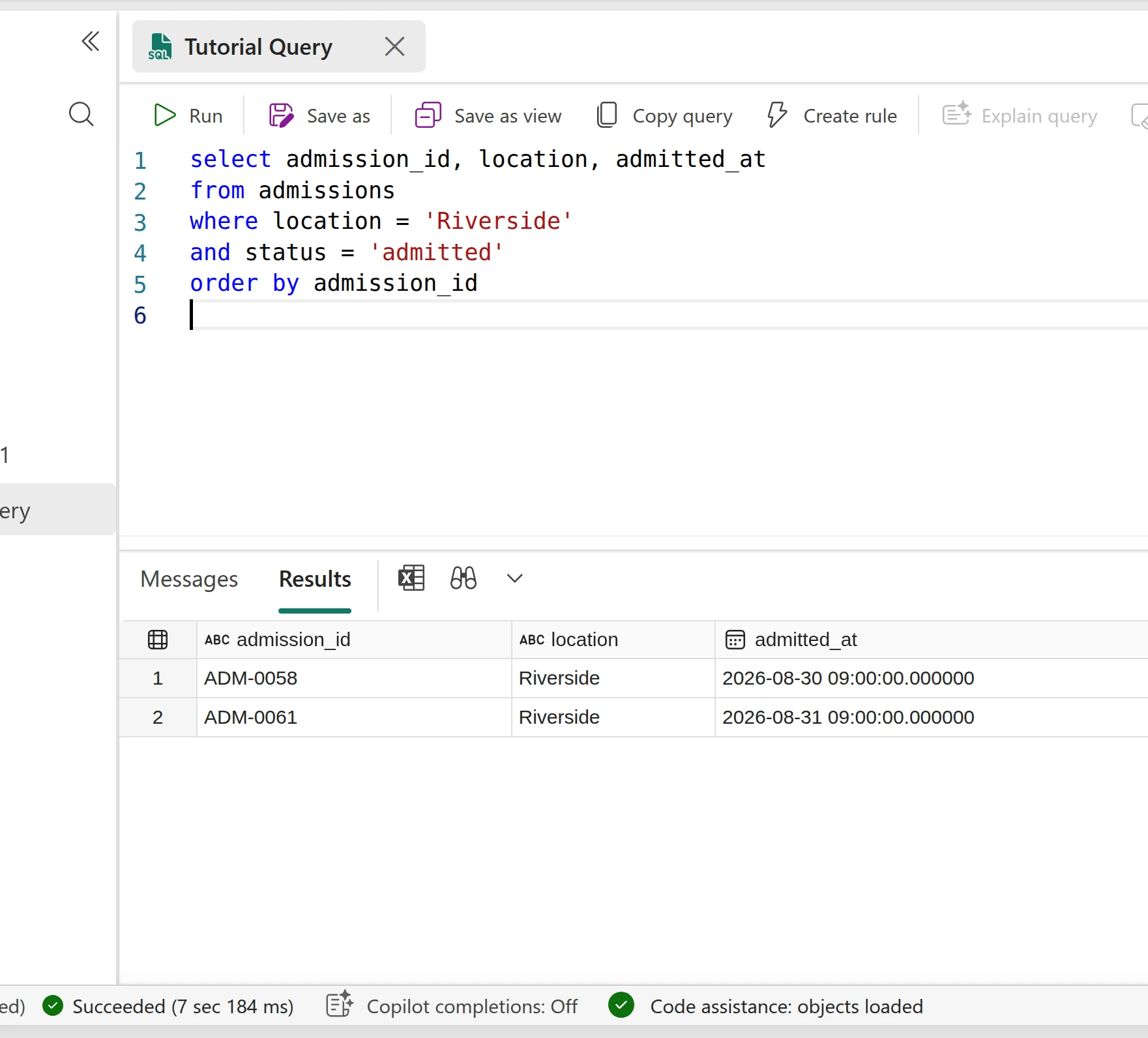
After invoking the service you'll see your results as below:
[{"admission_id": "ADM-0058", "location": "Riverside", "admitted_at": "2026-08-30 09:00:00"},
 {"admission_id": "ADM-0061", "location": "Riverside", "admitted_at": "2026-08-31 09:00:00"}]
You can run the query in Fabric directly to confirm it:
SQL vs. Spark
The queries from this tutorial run using SQL, but you may want to use Spark too, and you're wondering, when to use which one?
It depends on whether your service reads data or writes it. conn.query sends T-SQL to the lakehouse's SQL analytics endpoint, which is read-only, returns rows in well under a second and needs nothing beyond the connection. Use it for the selects, filters, joins and aggregates whose results your service passes on to its callers.
conn.run_spark runs PySpark or Spark SQL on a Spark session. Use it when your code writes tables or transforms data with PySpark. A session takes from a few seconds to a couple of minutes to open, and a tenant admin has to enable Fabric's Livy endpoint before it can open at all, so Spark fits scheduled batch jobs better than online API services that answer requests as they come in.
See also
| Page | What it covers |
|---|---|
| Writing data to Fabric | Appending rows, replacing small tables, loading files and writing files |
| Fabric API - Queries | conn.query, conn.refresh_sql_endpoint and the Spark methods, with every parameter |
| Fabric API - Connection | Every field of the connection form and how tokens are obtained and refreshed |