
 Your first Power Automate integration
Create the connection and trigger a flow from a Python service, reading back what the flow returns.
This tutorial shows how to trigger a Power Automate flow from a Python service and how to read what the flow returns. The flow already exists in Power Automate and starts with an HTTP request trigger, the service sends it a payload and receives its response.
Step 1 - Create an app registration in Entra ID
The connection signs in to Power Automate as an app registration from the Azure portal. Its overview page has the two IDs the connection needs, and a secret is created under Certificates and secrets.
You need to copy:
- Directory (tenant) ID
- Application (client) ID
- The secret's value, which the portal shows once, right after it is created
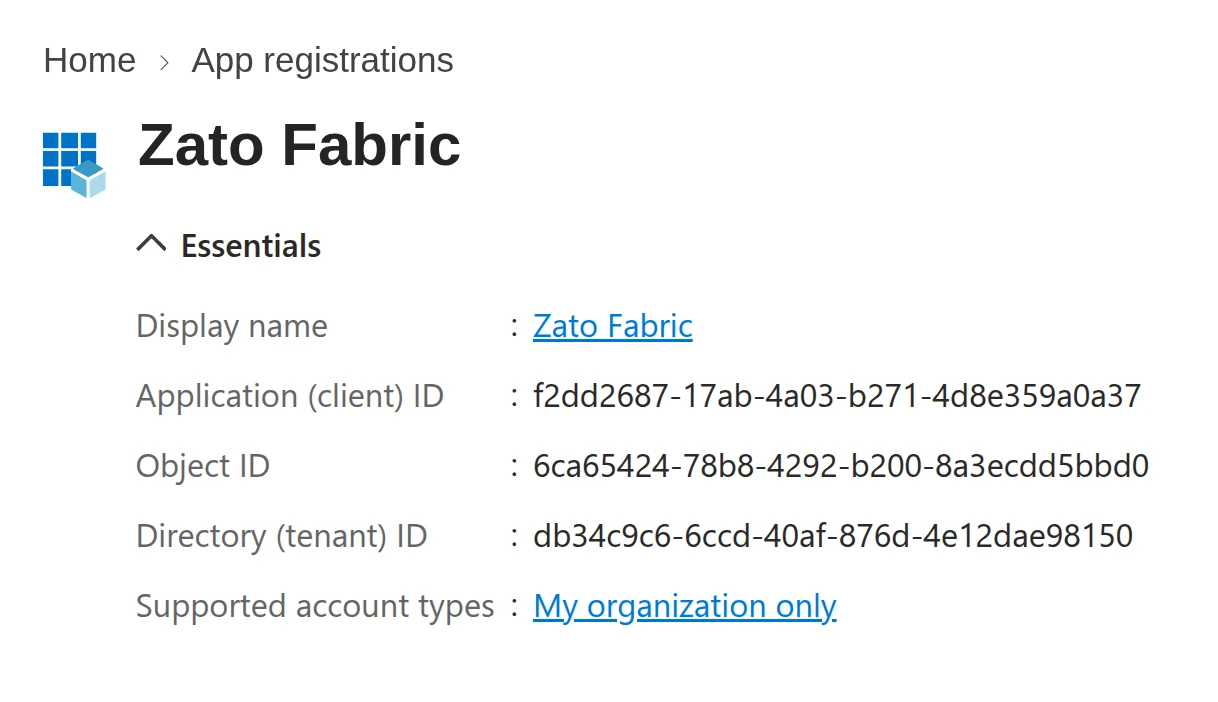
You also need the ID of the Power Platform environment the flow is in. The Power Platform admin center lists it under Environments, and it looks like Default-98765432-5432-5432-5432-dcba98765432.
Step 2 - Create a Power Automate connection in Zato Dashboard
Open the Zato Dashboard and go to Cloud → Microsoft → Power Automate. Click "Create a new connection" and fill in the form:
| Field | Value |
|---|---|
| Name | Zato Power Automate |
| Address | https://api.flow.microsoft.com |
| Tenant ID | The directory (tenant) ID |
| Client ID | The application (client) ID |
| Client secret | The secret of the app registration |
| Environment ID | The environment ID from step 1 |
Click "Ping". It obtains a token and lists the flows in the environment.
Step 3 - Find the flow's ID
Open the flow in Power Automate. Its ID is the GUID at the end of the address bar, after /flows/, e.g. 8f3c1a2e-5b7d-4e9a-b6c0-2d4f7a9e1c35. Copy it for the service.
Step 4 - Write the service
The service triggers a flow that checks whether a customer's order qualifies for a discount. It sends the customer and the order total, and the flow replies with the discount it worked out.
Take the code below and deploy it, then invoke it from the Dashboard's IDE under Services → IDE.
# -*- coding: utf-8 -*-

# Zato
from zato.server.service import Service

class CheckDiscount(Service):

    name = 'power-automate.check-discount'

    def handle(self):

        # The ID from step 3 ..
        flow_id = '8f3c1a2e-5b7d-4e9a-b6c0-2d4f7a9e1c35'

        # .. the payload the flow receives ..
        payload = {
            'customer_id': 'CUST-001',
            'order_total': 1250.50,
        }

        # .. get a Power Automate connection ..
        conn = self.microsoft.power_platform['Zato Power Automate']

        # .. trigger the flow ..
        result = conn.trigger(flow_id, payload)

        # .. and return its response to our caller.
        self.response.payload = result
Step 5 - Run it
After invoking the service you see the flow's response:
The same run is listed in the flow's run history in Power Automate, with the payload the service sent as the trigger's input.
See also
| Page | What it covers |
|---|---|
| Triggering Power Automate flows | Triggering a flow by its ID or by its callback URL and what comes back |
| Power Automate API - Flows | trigger, trigger_url and the flow methods, with every parameter |
| Power Automate API - Connection | Every field of the connection form and how tokens are obtained and refreshed |