
 Microsoft 365 APIs and Python Tutorial
Python-based Microsoft 365 automations that work in production - no OAuth2 or Graph API integration code to write.
This tutorial shows how to build Python-based Microsoft 365 automations that run in production. Its examples use implementation patterns drawn from enterprise Microsoft integrations to solve common business requirements.
- Start with the implementation - each section begins with working Python code.
- No OAuth2 integration code to write - Zato obtains and refreshes tokens for each Microsoft 365 request.
The examples send and read Outlook email, update calendar events, call Microsoft Graph endpoints and read Entra ID users.
Remember: you can connect your AI copilot to Zato documentation.
Learning objectives


- How to connect to Microsoft 365 APIs in Python without implementing OAuth2 token handling.
- How to automate Calendar, SharePoint and Email in particular.
Most enterprise automation tasks involve coordinating multiple Microsoft 365 services. Here's what this typically looks like in production:
- Sending emails or reading data from Outlook mailboxes
- Cross-referencing calendar availability
- Creating calendar events based on email content
- Fetching additional data from SharePoint
- Checking users in Entra ID (Azure AD)
- Updating multiple systems in sequence
While we focus on Outlook, Calendar, and SharePoint examples, the same patterns apply to any Microsoft 365 API.
Prerequisites
Complete the Python API Integrations In-Depth Tutorial before starting this tutorial.
Getting your Microsoft 365 app credentials
Ask your admin, or do it yourself if you have permissions, to create a new Microsoft 365 app.
Once the app is created, you'll then need the following:
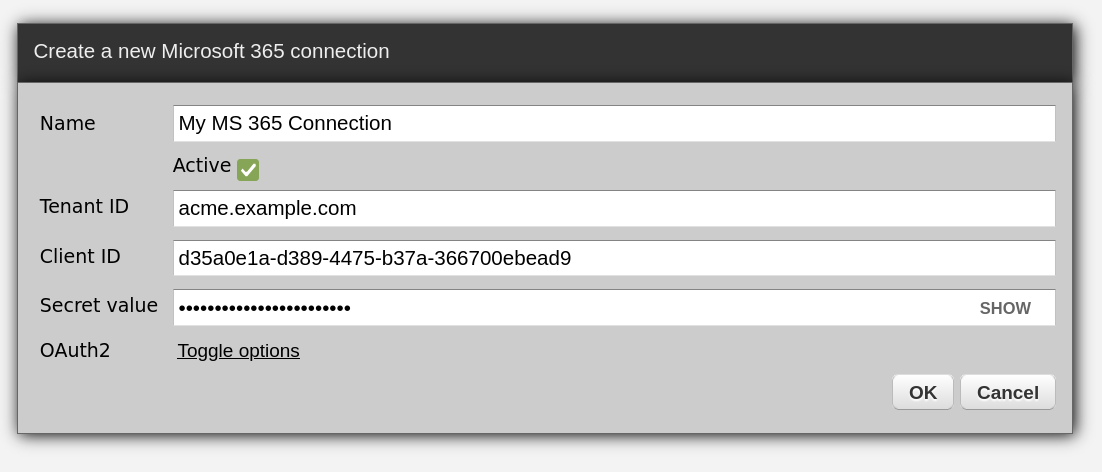
- Tenant ID (e.g. acme.example.com or a1898248-b908-4761-974a-94472ad8083f)
- Client ID: (e.g. d35a0e1a-d389-4475-b37a-366700ebead9)
- Client secret: (password for the app)
- Email address: (needed to send and read emails)
Create two connections to the Microsoft 365 account: one for general Microsoft 365 APIs and one for reading email.
Create a Microsoft 365 cloud API connection
In the dashboard, go to Vendors → Microsoft → 365 → Cloud and fill out the form as below, copy-pasting the client details of the app created for you by your admin.

Create a Microsoft 365 IMAP email connection
In the dashboard, go to Vendors → Microsoft → 365 → IMAP and fill out the form as below, making sure first that you select "Microsoft 365" for the server type. Afterwards, click "Change secret" and enter your client's secret.

Microsoft 365 Outlook email in Python
# -*- coding: utf-8 -*-

# Zato
from zato.server.service import Service

class SendEmail(Service):

    def handle(self):

        # Connection to use ..
        conn_name = 'My MS 365 Connection'

        # Email address to send messages from
        email_from = 'sender@example.com'

        # Email to send messages to
        email_to = 'recipient@example.com'

        # .. get the connection ..
        conn = self.microsoft.cloud[conn_name]

        # .. use the mailbox API ..
        mailbox = conn.mailbox(resource=email_from)

        # .. build our message ..
        message = mailbox.new_message()
        message.to.add(email_to)
        message.subject = 'Testing'
        message.body = '<b>Hello</b>'

        # .. and send it out.
        message.send()
Save the code as email.py in Services → IDE, deploy it and invoke it, following the process from the main tutorial.
Microsoft 365 IMAP email in Python
# -*- coding: utf-8 -*-

# Zato
from zato.server.service import Service

class ReadEmails(Service):

    def handle(self):

        # Connection to use ..
        conn_name = 'My MS 365 Connection'

        # .. get a new connection to the email server ..
        conn = self.email.imap.get(conn_name).conn

        # .. go through each of the messages found ..
        for _, msg in conn.get():

            # .. log what we've found ..
            self.logger.info(f'Message received: {msg.data}')

            # .. and mark it as seen.
            msg.mark_seen()
The IMAP connection selects the mailbox. The service logs each message and marks it as seen so that subsequent runs do not process it again.
Microsoft 365 calendar in Python
# -*- coding: utf-8 -*-

# Zato
from zato.server.service import Service

class UpdateCalendarEvents(Service):

    def handle(self):

        # Connection to use ..
        conn_name = 'My MS 365 Connection'

        # .. whose calendar we're going to access ..
        email = 'user@example.com'

        # .. we'll look up events between these dates ..
        start_date = '2025-01-01'
        end_date = '2025-12-31'

        # .. how to order calendar events ..
        order_by = 'start/dateTime desc'

        # .. get the connection ..
        conn = self.microsoft.cloud[conn_name]

        # .. use the Calendar API (aka "schedule") ..
        schedule = conn.schedule(resource=email)

        # .. get the account's default calendar ..
        calendar = schedule.get_default_calendar()

        #.. create query filters ..
        query = calendar.new_query('start').greater(start_date).less(end_date)

        # .. extract all the events ..
        events = calendar.get_events(query=query, order_by=order_by, limit=10000)

        # .. go through each ..
        for event in events:

            # .. log what we're doing ..
            self.logger.info(f'Processing event: {event}')

            # .. set a new location for the event ..
            event.location = 'Building 123'

            # .. and save it permanently.
            event.save()
The service reads events in the selected date range from the default calendar, logs each event, changes its location and saves it.
Task scheduling in Python
To run the calendar service periodically, create an interval-based job in Scheduler, following the process from the main tutorial.

Diving deeper - using Graph REST APIs directly
Use conn.connection.get to call Microsoft Graph endpoints not exposed by the higher-level client APIs. The Microsoft 365 connection obtains the OAuth2 token for each request. This SharePoint example reads the columns of a list, and the same method applies to other Microsoft Graph REST APIs.
def handle(self) -> 'None':

    # Our SharePoint site
    site_id = '123'

    # A SharePoint list we're interested in
    list_id = '456'

    # A Microsoft Graph API endpoint to invoke
    endpoint = f"https://graph.microsoft.com/v1.0/sites/{site_id}/lists/{list_id}/columns"

    # Connection name to use
    conn_name = 'My MS 365 Connection'

    # Get the connection ..
    conn = self.microsoft.cloud[conn_name]

    # .. invoke the endpoint directly, using the Graph API ..
    response = conn.connection.get(endpoint)

    # .. extract a JSON response ..
    data = response.json()

    # .. and print it to logs.
    self.logger.info(f'SharePoint data: {data}')
Entra ID (Azure AD) in Python
The following service reads users from Entra ID, formerly Azure AD.
# -*- coding: utf-8 -*-

# Zato
from zato.server.service import Service

class EntraID(Service):

    def handle(self):

        # Response to produce
        out = []

        # Connection to use ..
        conn_name = 'My MS 365 Connection'

        # .. get the connection ..
        conn = self.microsoft.cloud[conn_name]

        # .. we are accessing an Entra ID instance ..
        directory = conn.directory()

        # .. now, get all users ..
        users = directory.get_users()

        # .. iterate through all of them ..
        for user in users:

            # .. append user data to the response that we are producing ..
            out.append({
                'mail': user.mail,
                'full_name': user.full_name,
            })

        # .. and return the response to the caller.
        self.response.payload = out
Bonus points - integrating with Microsoft Dataverse
There's an entire article about integrating with Microsoft Dataverse in Python, and here's a quick preview of how it works:
# -*- coding: utf-8 -*-

# Zato
from zato.common.typing_ import any_
from zato.server.service import DataverseClient, Service

class MyService(Service):

    def handle(self):

        # Set up Dataverse credentials - in a real service,
        # this would go to your configuration file.

        tenant_id = '221de69a-602d-4a0b-a0a4-1ff2a3943e9f'
        client_id = '17aaa657-557c-4b18-95c3-71d742fbc6a3'
        client_secret = 'MjsrO1zc0.WEV5unJCS5vLa1'
        org_url = 'https://org123456.api.crm4.dynamics.com'

        # Build the Dataverse client using the credentials
        client = DataverseClient(
            tenant_id=tenant_id,
            client_id=client_id,
            client_secret=client_secret,
            org_url=org_url
        )

        # Retrieve all accounts using a helper method
        accounts = self.get_accounts(client)

        # Process the accounts as needed (custom logic goes here)
        pass

    def get_accounts(self, client:'DataverseClient') -> 'any_':

        # Specify the API path for the accounts entity
        path = 'accounts'

        # Call the Dataverse API to retrieve all accounts
        response = client.get(path)

        # Log the response for debugging/auditing

        self.logger.info(f'Dataverse response (get accounts): {response}')

        # Return the API response to the caller
        return response
{'@odata.context': 'https://org1234567.crm4.dynamics.com/api/data/v9.0/$metadata#accounts',
'value': [{'@odata.etag': 'W/"11122233"', 'territorycode': 1,
'accountid': 'd92e6f18-36fb-4fa8-b7c2-ecc7cc28f50c', 'name': 'Zato Test Account 1',
'_owninguser_value': 'ea4dd84c-dee6-405d-b638-c37b57f00938'}]}
Finding more usage examples
Zato uses the O365 Python library for Microsoft 365 connectivity. The client provides access to these Microsoft 365 services:
- AddressBook
- Excel
- Directory and Users
- MailBox
- OneDrive
- Outlook Categories
- SharePoint
- Tasks
The examples in the O365 documentation use the same client APIs available through the Microsoft 365 connection.
For file-centric work - SharePoint document libraries, OneDrive, uploads of any size including large files sent in chunks - the SharePoint and OneDrive file APIs page has complete examples.
Further Microsoft tutorials
- Integrating with Microsoft Dataverse in Python
- Dynamics 365 integration guide - Finance and Operations, Business Central and Dataverse over OData
- Power Automate tutorial
- Microsoft Fabric tutorial
- Microsoft Teams examples
- SharePoint and OneDrive file APIs